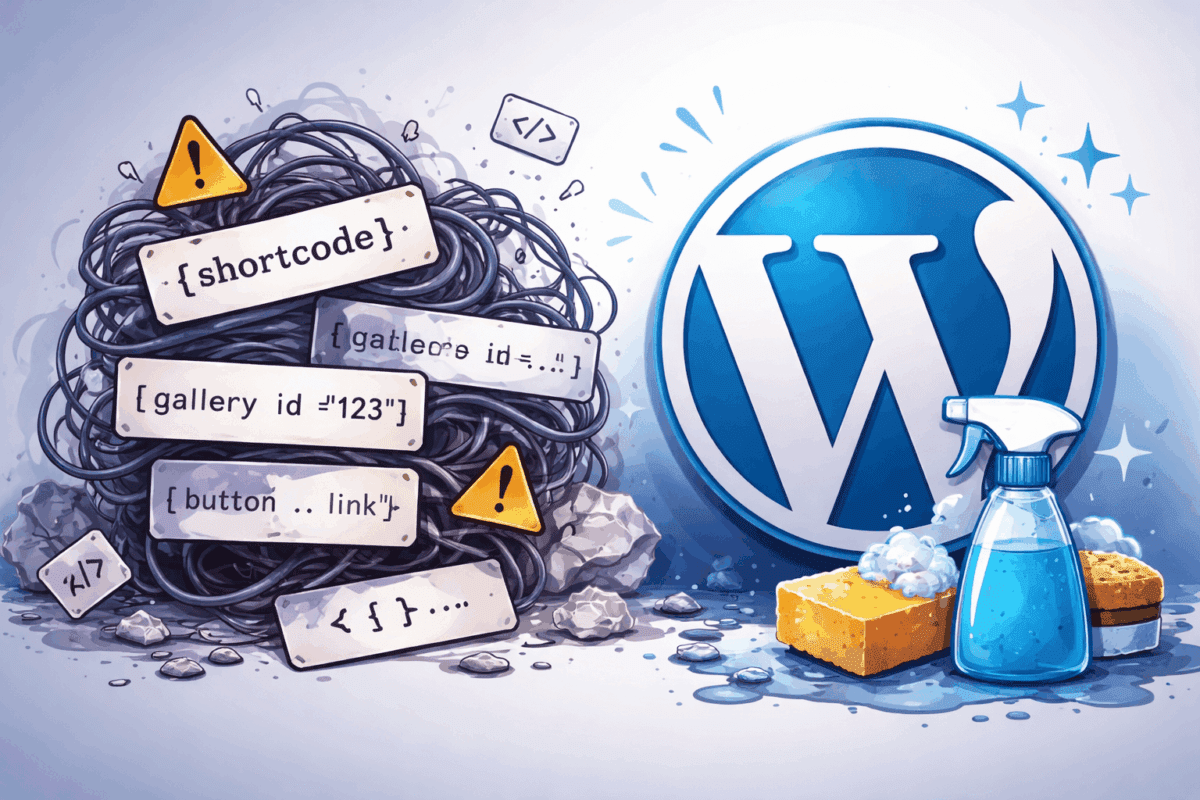
You’ve inherited a WordPress site. It’s running 43 plugins, half of them haven’t been updated since 2021, and there are shortcodes everywhere that render as [some_plugin_thing] because nobody remembers what plugin they came from.
The previous developer is long gone. There’s no documentation. And the client wants you to “just clean it up.”
Sound familiar? Here’s how to untangle it without breaking everything.
Start With an Audit, Not a Purge
The instinct is to start deactivating old plugins and see what breaks. Don’t. You’ll spend more time fixing the damage than you saved.
Before you remove anything, you need to know what’s actually being used and where.
The problem with broken blocks: WordPress shows you a “This block contains unexpected or invalid content” error in the editor. But it only shows you that one instance. If the same block exists on 30 other pages, you won’t know until you visit each one.
The problem with old shortcodes: When you deactivate a plugin that registered a shortcode, WordPress doesn’t delete the shortcode from your content. It just renders as raw text on the frontend. Your visitors see [old_gallery id="42"] instead of an actual gallery.
How to Find Everything
For blocks, use Find My Blocks. It scans your entire site and shows every block type with usage counts and direct links to the posts where they appear. You’ll see exactly which plugins have blocks scattered across the site – including plugins you’ve already removed.
For shortcodes, search the database directly. Install a search-and-replace plugin like Better Search Replace, search for [ in wp_posts, and look at the results without replacing anything. You’ll get a list of every shortcode pattern in your content.
Once you’ve got your inventory, export it or screenshot it. You’ll reference this throughout the cleanup.
What’s Actually Broken vs Just Old
Not everything old needs fixing. Some plugins work fine even without updates. Some shortcodes still render correctly. Focus your energy on what’s actually causing problems.
Fix these first:
Blocks showing “unexpected content” errors are actively broken. Visitors see nothing, corrupted content, or a PHP error depending on your theme. These need immediate attention.
Shortcodes rendering as raw text on the frontend look unprofessional and confuse visitors. If [contact-form-7 id="123"] is showing up as literal text, fix it.
Plugins with known security vulnerabilities are a liability. Check your plugins against the WPScan vulnerability database or use a security plugin like Wordfence to flag issues.
Lower priority:
Plugins that haven’t been updated in two years but still work aren’t urgent. Keep an eye on them, but don’t rush to replace something that isn’t broken.
Orphaned block data in your database from removed plugins isn’t hurting anything. It’s invisible to visitors. You can clean it up, but it’s optimization, not a fix.
Legacy Plugins Worth Replacing
Here’s where inherited sites get expensive: they’re often running five plugins to do what one modern plugin handles. Consolidation saves you maintenance headaches and reduces security surface area.
Content Visibility and Restriction
Old sites often have some combination of “Show If” plugins, role-based content plugins, or custom PHP snippets in the theme that hide content from certain users.
These work, but they’re scattered. You’ve got conditions in three different plugins plus theme code. Nobody knows what’s hiding what from whom.
Conditional Blocks consolidates this. You get 36+ visibility conditions that work on any WordPress block: user roles, logged-in status, membership levels, and more. The conditions live on the blocks themselves, so you can see what’s restricted just by opening the editor.
Great for membership sites and gated content. If you’re managing role-specific messaging across dozens of pages, consolidating into one system makes the site maintainable again.
Scheduled and Expiring Content
Old approach: a “Post Expirator” plugin, custom cron jobs, or someone manually unpublishing posts when promotions end. The cron jobs break, the manual process gets forgotten, and expired promotions stay live for months.
Conditional Blocks handles date scheduling at the block level. Set a start and end date on any block. When the date passes, the block stops displaying. No cron jobs, no manual intervention. Set up a Black Friday banner in October and forget about it.
Geolocation and Regional Content
Some inherited sites have heavyweight geo-IP plugins that maintain their own databases, require regular updates, and slow down page loads with IP lookups on every request.
Need to show different content by country or region? No problem. Conditional Blocks includes geolocation conditions that handle this without the overhead. Show a UK shipping notice to UK visitors, a GDPR banner to EU visitors, or regional pricing. The lookups are lightweight and cached.
Dealing With Orphaned Shortcodes
You’ve found shortcodes from plugins that no longer exist. Now what?
If you can identify the plugin: Reinstall it temporarily. This makes the shortcodes render again so you can see what content they were displaying. Then convert that content to native blocks or a current plugin, and remove the shortcode. Once you’ve converted all instances, uninstall the plugin.
If the plugin is gone or unknown: Handle these manually. Search your database for the shortcode pattern, visit each post that contains it, and replace the shortcode with appropriate content. Tedious, but necessary.
Common shortcodes you’ll encounter on old sites:
The 
The shortcode usually converts to an Image block with caption. Opening the post in the editor triggers the conversion.
Contact form shortcodes like [contact-form-7] or [gravityform] need manual replacement. Install a current form plugin, recreate the form, and swap in the new embed.
The shortcode typically converts automatically to the appropriate embed block. Open the post and check.
After you’ve cleaned up shortcodes, run Find My Blocks again. Shortcode blocks show up in the results, so you can verify you caught everything.
Cleaning Up Leftover Block Data
Here’s something most guides don’t mention: when you remove a plugin that added blocks, the block data stays in your post_content column. WordPress stores block content as HTML comments, and that markup persists even when the plugin is gone.
Should you clean it up? In most cases, no. It’s invisible to visitors, doesn’t affect performance, and removing it carries risk. Delete the wrong pattern and you’ll corrupt posts.
If it bothers you – or if you’re dealing with a site that has thousands of posts with orphaned block data – you can use Better Search Replace to remove specific patterns. Test extensively on staging first. This is optimization, not essential maintenance.
A Realistic Cleanup Workflow
Putting it all together:
Week 1: Discovery. Run Find My Blocks. Search the database for shortcodes. Document what you find. Don’t change anything yet.
Week 2: Triage. Sort your findings into three buckets: visibly broken (fix now), security risks (fix now), and cleanup/optimization (fix later). Share this with the client so expectations are set.
Week 3+: Systematic fixes. Work through one plugin or shortcode at a time. Test after each change. Re-scan periodically to verify your progress. Don’t try to do everything at once.
The goal isn’t a perfect site by Friday. It’s a maintainable site that won’t surprise you with broken content six months from now.
Tools Mentioned
Find My Blocks – Free plugin to scan and locate all blocks across your WordPress site. Essential for auditing inherited sites.
Conditional Blocks – Visibility conditions for any WordPress block. Replaces multiple legacy plugins for content restriction, scheduling, geolocation, and device targeting.
Better Search Replace – Free plugin for searching (and optionally replacing) patterns in your WordPress database. Useful for finding shortcodes.
Related: Find My Blocks – Locate Every Block Across Your WordPress Site