Your WordPress site has hundreds of blocks scattered across pages, posts, and templates. You need to find them. Maybe you’re replacing a plugin, updating button styles site-wide, or figuring out where that custom CTA block actually lives.
Scrolling through every page isn’t an option. Find My Blocks fixes that.
What Does Find My Blocks Do?

Find My Blocks searches your entire WordPress site and shows you exactly where each Gutenberg block lives. Every page, every post, every custom post type. One scan gives you the full picture of block usage across your site.
Here’s what it finds:
- All WordPress core blocks – paragraphs, images, groups, columns
- Third-party plugin blocks – even blocks from plugins you’ve uninstalled
- Synced Patterns (formerly Reusable Blocks)
- Conditional Blocks with visibility conditions – see which blocks have conditions applied
- Template blocks – Full Site Editing templates and template parts
- Nested blocks – blocks inside groups, columns, and containers
The plugin shows you block counts, quick edit links, and preview links for every result.
For each block type, you get usage counts, quick edit links, and preview links. Click through to jump straight to any post.
How to Set It Up
Install Find My Blocks from the WordPress plugin directory, activate it, then go to Tools → Find My Blocks.
You’ll see a performance setting. Pick based on your hosting:
| Setting | Best For | Batch Size |
|---|---|---|
| Low | Shared hosting | 30 posts |
| Medium | VPS, managed hosting | Medium batches |
| High | Dedicated servers | Large batches |
Click scan. The plugin automatically detects which post types use the block editor and skips everything else.

Finding Blocks With Visibility Conditions
This is where Find My Blocks pairs with Conditional Blocks.
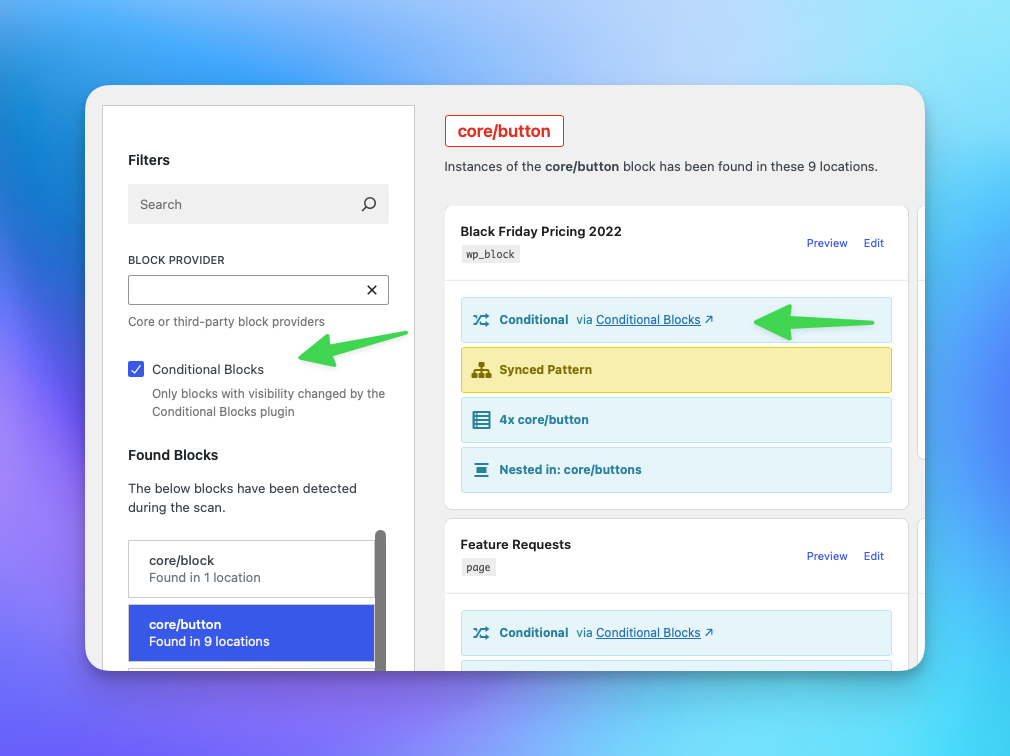
Need to update every block that uses date scheduling before a campaign ends? No problem. Filter by Conditional Blocks, and you’ll see every block with visibility conditions across your site. Click through, update the condition, done.
Great for auditing membership content too. If you’re restricting blocks to specific user roles or membership levels, Find My Blocks shows you exactly where those restrictions live. No more guessing which pages have gated content.
When You’ll Actually Use This
Plugin migrations. Switching from one block plugin to another? Find My Blocks shows every instance of the old plugin’s blocks. You’ll know the scope of the migration before you start – not halfway through when you discover 47 more pages to update.
Design updates. Changed your button component? Find every button block and update them systematically. No more finding missed buttons six months later when a client points them out.
Content audits. See which blocks actually get used. You might have 200 instances of your CTA block. Or that premium testimonial block you bought might only appear twice. The data tells you what’s worth keeping.
Cleaning up old conditions. Sites accumulate conditional content over time – promotions that ended, membership tiers that changed, A/B tests that concluded. Find My Blocks helps you locate this stale conditional content and clean it up.
Does It Handle Large Sites?
Yes. Find My Blocks uses IndexedDB caching, so sites with thousands of posts and 10,000+ blocks stay fast. Scanning happens in batches to avoid overwhelming shared hosting. After the first scan, the plugin remembers what it found – subsequent scans are quick.
FAQ
How do I find which Gutenberg blocks are used on my site?
Install Find My Blocks, go to Tools → Find My Blocks, and run a scan. You’ll see every block type with usage counts and links to the posts where they appear.
Can I search for a specific block across all pages?
Yes. After scanning, the results list every block type on your site. Click any block to see exactly which posts and pages contain it, with direct edit links.
Does it find blocks from plugins I’ve removed?
Yes. Block data stays in your post content even after you uninstall a plugin. Find My Blocks detects these orphaned blocks so you can clean them up or replace them.
Does it work with Full Site Editing templates?
Yes. Find My Blocks scans FSE templates and template parts, not just posts and pages.
Get Find My Blocks
Find My Blocks is free and open source.
Combined with Conditional Blocks, you’ve got full control over what displays and exactly where it lives on your site.
Related: How to Add Visibility Conditions to WordPress Blocks