
Show or hide blocks based on ACF field values stored on WordPress user profiles.
Requirements
- Advanced Custom Fields (ACF) plugin active
- Conditional Blocks Pro license
- ACF field groups with user location rules
Setup
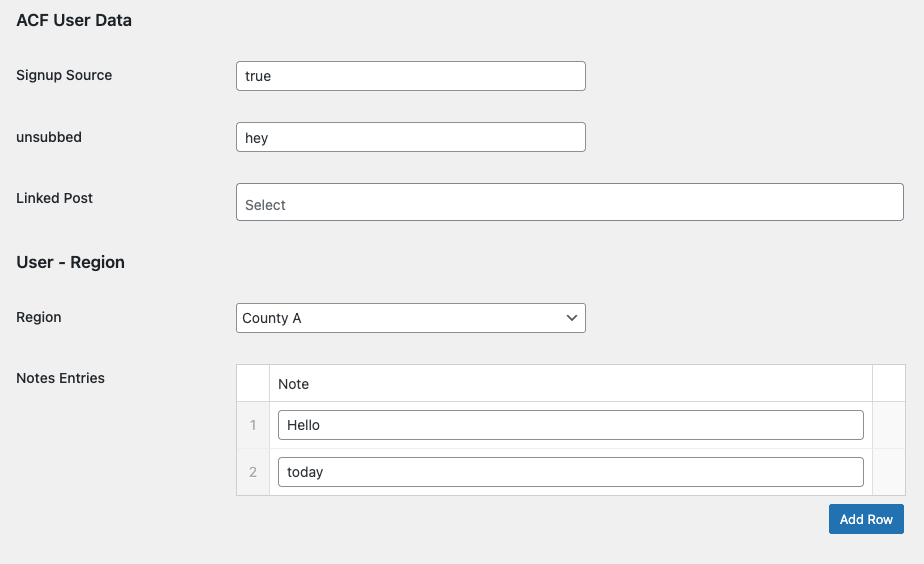
1. Create ACF User Fields
- Go to Custom Fields > Field Groups
- Create or edit a field group
- Add your fields (text, select, checkbox, etc.)
- Set the location rule to: User Form → is equal to → All
2. Configure the Condition
- Select a block and open the Conditions panel
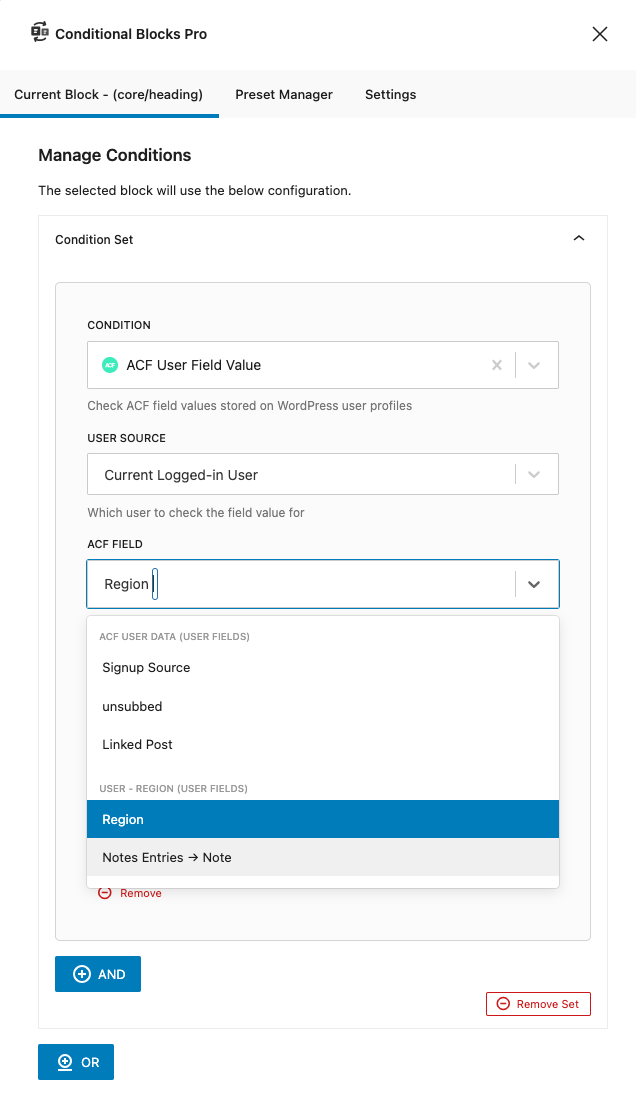
- Add the ACF User Field Value condition
- Configure the fields:
| Field | Description |
|---|---|
| User Source | Current Logged-in User or Post Author |
| ACF Field | Select from user profile fields (includes repeater and group subfields) |
| Operator | How to compare the value (see below) |
| Field Value | The value to compare against (for relevant operators) |
Operators
| Operator | Description |
|---|---|
| Has any value | Field is not empty |
| No value | Field is empty |
| Equal to | Exact match (case-sensitive) |
| Not equal to | Does not match |
| Contains | Value includes the text |
| Does not contain | Value excludes the text |
| Greater than | Numeric comparison |
| Less than | Numeric comparison |
| Greater than or equal to | Numeric comparison |
| Less than or equal to | Numeric comparison |
Examples
| Use Case | User Source | Field | Operator | Value |
|---|---|---|---|---|
| Premium member content | Current User | membership_level | Equal to | premium |
| Show author bio when filled | Post Author | biography | Has any value | — |
| Content for tech enthusiasts | Current User | interests | Contains | Technology |
| Hide from free users | Current User | membership_level | Not equal to | free |
| Users with 10+ purchases | Current User | purchase_count | Greater than | 10 |
| Repeater: has WordPress skill | Current User | skills.skill_name | Contains | WordPress |
| Group: profile complete | Current User | profile_details_bio | Has any value | — |
Repeater Fields
For repeater subfields, the field name uses dot notation: repeater_name.subfield_name
The condition checks if any row in the repeater matches. For example, if a user has multiple skills and one contains “WordPress”, the condition matches.
Group Fields
For group subfields, the field name uses underscore notation: group_name_subfield_name
Supported Field Types
- Text, Textarea, Number, Email, URL
- Select, Checkbox, Radio
- True/False, Date
- Repeater subfields
- Group subfields
Not supported: File, Image, Gallery fields
Troubleshooting
Field not in dropdown
- Check the field group location is set to “User Form”
- Make sure ACF is active
- Verify the field group is published
Condition always false
- Current User: User must be logged in
- Post Author: Must be on a single post/page with an author
- Check exact value match (comparisons are case-sensitive)
- Verify the user actually has a value saved for that field
Related Conditions
- ACF Field Value — Check ACF fields on posts
- User Role — Check user roles
- User Status — Check if logged in