
People managing WordPress sites have requested hiding certain conditions and functionality from the Conditional Blocks UI. It’s now possible to exclude parts of the interface and control access to features using various filters.
Overview
Conditional Blocks provides several filters that allow you to customize what users see and can interact with in the block editor. These filters are particularly useful for:
- Agencies – Simplifying the interface for clients
- Enterprise – Enforcing security and compliance policies
- Education – Reducing complexity for students and instructors
- Managed WordPress – Providing curated experiences
Important: Excluding conditions or features from the UI does not break existing blocks. Blocks that already have excluded conditions applied will continue to work normally.
Available Filters
1. Restrict Preset Management
Upcoming for Conditional Blocks Pro 3.3.1
Control who can create, edit, and delete presets within the Preset Manager
Filter: conditional_blocks_can_manage_presets
Default: Users with edit_posts capability can manage presets
Use case: Allow only administrators to manage presets while letting all users apply them.
/**
 * Restrict preset management to administrators only.
 *
 * @param bool $can_manage Whether the current user can manage presets.
 * @return bool
 */
function restrict_preset_management( $can_manage ) {
    return current_user_can( 'manage_options' );
}
add_filter( 'conditional_blocks_can_manage_presets', 'restrict_preset_management' );
Code language: PHP (php)
What happens:
- ✅ All users can still use existing presets in the Condition Builder
- ❌ Non-administrators cannot create new presets
- ❌ Non-administrators cannot edit preset names
- ❌ Non-administrators cannot modify preset conditions
- ❌ Non-administrators cannot delete presets
- 📝 Users see a message: “You do not have permission to create or edit presets. You can still use existing presets in the Condition Builder.”
Alternative examples:
// Allow specific roles
add_filter( 'conditional_blocks_can_manage_presets', function( $can_manage ) {
    $user = wp_get_current_user();
    $allowed_roles = array( 'administrator', 'site_manager' );
    return ! empty( array_intersect( $allowed_roles, $user->roles ) );
} );
Code language: PHP (php)
2. Hide Conditional Blocks from the WordPress Editor
Hide the entire Conditional Blocks panel & settings from the block editor sidebar.
Filter: conditional_blocks_visible_in_editor
Default: true (visible to all users)
Use case: Completely disable the Conditional Blocks interface for certain user roles.
/**
 * Hide Conditional Blocks panel from non-administrators.
 *
 * @param bool $visible Whether Conditional Blocks should be visible.
 * @return bool
 */
function hide_conditional_blocks_from_users( $visible ) {
    // Only show to administrators
    if ( ! current_user_can( 'manage_options' ) ) {
        return false;
    }

    return $visible;
}
add_filter( 'conditional_blocks_visible_in_editor', 'hide_conditional_blocks_from_users' );
Code language: PHP (php)
What happens:
- ❌ The “Conditions” tab is completely hidden from the block inspector
- ❌ Users cannot add or edit conditions
- ✅ Existing blocks with conditions continue to work normally
- ✅ Conditions are still evaluated on the frontend
Alternative examples:
// Hide from Contributors and Authors
add_filter( 'conditional_blocks_visible_in_editor', function( $visible ) {
    return current_user_can( 'edit_others_posts' ); // Editors and above
} );

// Hide on specific sites in multisite
add_filter( 'conditional_blocks_visible_in_editor', function( $visible ) {
    $hidden_sites = array( 2, 5, 8 );
    if ( in_array( get_current_blog_id(), $hidden_sites ) ) {
        return false;
    }
    return $visible;
} );
Code language: PHP (php)
3. Exclude Specific Condition Types
Hide specific condition types from the Condition Builder while keeping their categories visible.
Filter: conditional_blocks_excluded_condition_types
Default: array() (no conditions excluded)
Use case: Remove advanced or rarely-used conditions to simplify the interface.
Finding condition type IDs:
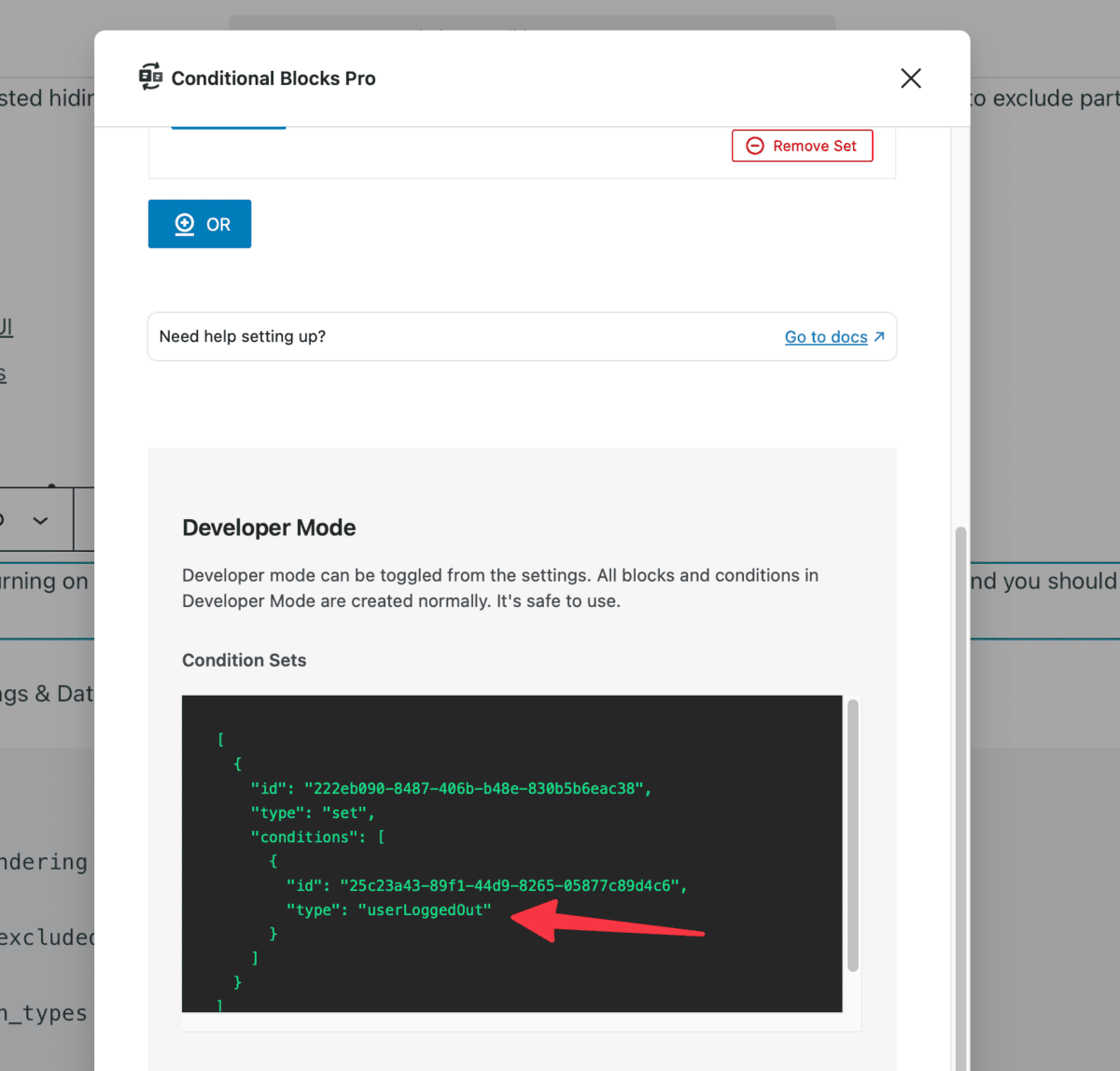
- Turn on Developer Mode in Conditional Blocks settings
- Add conditions to a block
- Open the Conditions tab
- Scroll to the Developer Mode section
- Look for the
"type"field for each condition
/**
 * Exclude specific condition types from the Condition Builder.
 *
 * Note: Blocks that have an excluded condition applied will continue to work normally.
 *
 * @param array $excluded_condition_types Array of condition type IDs to exclude.
 * @return array
 */
function custom_excluded_condition_types( $excluded_condition_types ) {
    $excluded_condition_types[] = 'queryStrings';
    $excluded_condition_types[] = 'dateRange';
    $excluded_condition_types[] = 'urlParameter';
    $excluded_condition_types[] = 'phpLogic';

    return $excluded_condition_types;
}
add_filter( 'conditional_blocks_excluded_condition_types', 'custom_excluded_condition_types' );
Code language: PHP (php)
What happens:
- ❌ Excluded condition types don’t appear in the condition selector
- ✅ The parent categories remain visible (unless all conditions in a category are excluded)
- ✅ Existing blocks with excluded conditions continue to work
- ✅ Users can still edit other conditions on blocks with excluded conditions
4. Exclude Entire Condition Categories
Hide entire categories of conditions from the Condition Builder.
Filter: conditional_blocks_excluded_categories
Default: array() (no categories excluded)
Use case: Remove entire sections of functionality (like geolocation or WooCommerce) to drastically simplify the interface.
Finding category IDs:
- Turn on Developer Mode in Conditional Blocks settings
- Check the Developer Mode output for category information, or
- Reference the common categories below
/**
 * Exclude entire categories from the Condition Builder.
 *
 * Note: Blocks that have excluded conditions will continue to work normally.
 *
 * @param array $excluded_categories Array of category IDs to exclude.
 * @return array
 */
function custom_excluded_categories( $excluded_categories ) {
    $excluded_categories[] = 'advanced';
    $excluded_categories[] = 'geolocation';
    $excluded_categories[] = 'woocommerce';

    return $excluded_categories;
}
add_filter( 'conditional_blocks_excluded_categories', 'custom_excluded_categories' );
Code language: PHP (php)
What happens:
- ❌ All conditions within excluded categories are hidden
- ❌ Category headers don’t appear in the condition selector
- ✅ Existing blocks with excluded conditions continue to work
- ✅ Other categories remain fully functional
Common categories:
$excluded_categories[] = 'general';        // General conditions (User Logged In, Device Type, etc.)
$excluded_categories[] = 'content';        // Content conditions (Post Type, Category, etc.)
$excluded_categories[] = 'user';           // User conditions (User Role, Capabilities, etc.)
$excluded_categories[] = 'datetime';       // Date/Time conditions
$excluded_categories[] = 'geolocation';    // Geolocation conditions (Country, IP Address, etc.)
$excluded_categories[] = 'woocommerce';    // WooCommerce conditions
$excluded_categories[] = 'advanced';       // Advanced conditions (PHP Logic, Query Strings, etc.)
$excluded_categories[] = 'acf';            // Advanced Custom Fields conditionsCode language: PHP (php)
5. Exclude Specific Block Types
Prevent Conditional Blocks from being available on specific block types.
Filter: conditional_blocks_excluded_block_types
Default: array() (available on all blocks)
Use case: Disable conditional logic on blocks that shouldn’t have dynamic behavior.
/**
 * Exclude Conditional Blocks from specific block types.
 *
 * @param array $excluded_block_types Array of block type names to exclude.
 * @return array
 */
function exclude_blocks_from_conditional_blocks( $excluded_block_types ) {
    $excluded_block_types[] = 'core/site-logo';
    $excluded_block_types[] = 'core/site-title';
    $excluded_block_types[] = 'core/navigation';

    return $excluded_block_types;
}
add_filter( 'conditional_blocks_excluded_block_types', 'exclude_blocks_from_conditional_blocks' );
Code language: PHP (php)
What happens:
- ❌ The Conditions tab doesn’t appear for excluded block types
- ✅ All other blocks continue to have conditional functionality