
Show or hide blocks based on data stored in a user’s profile.
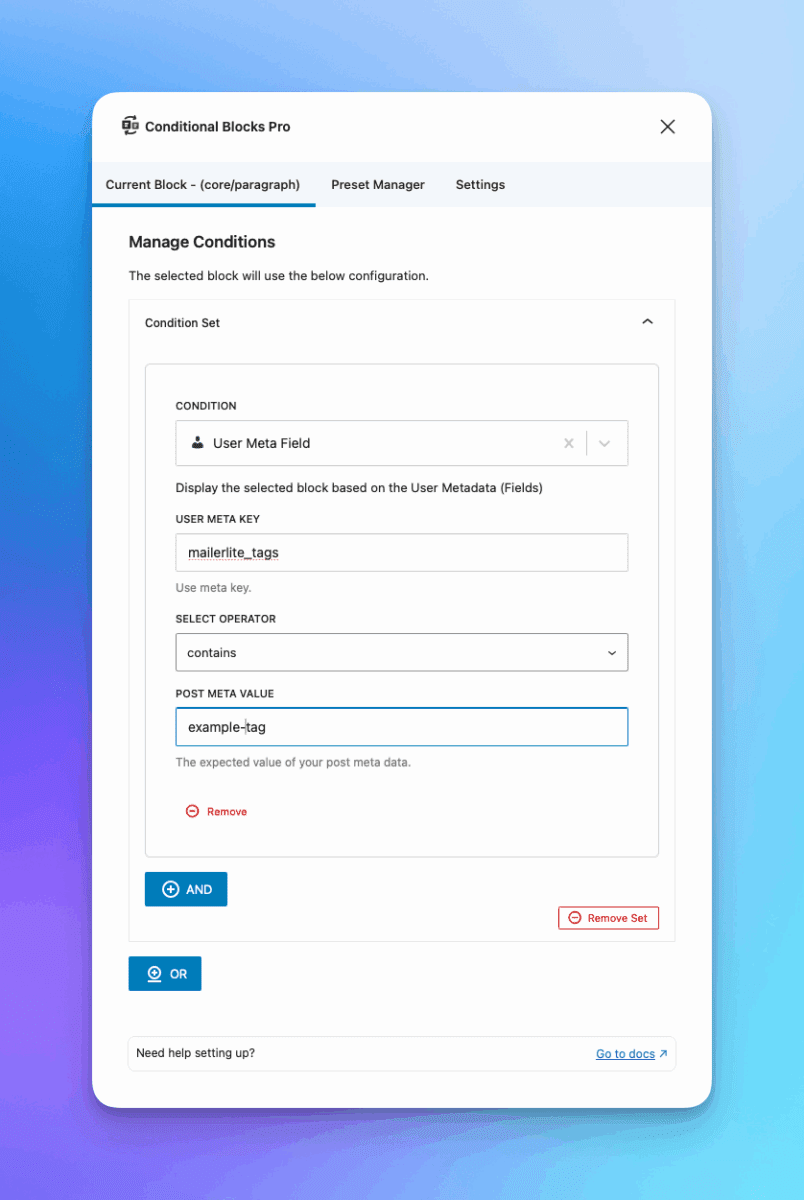
What is User Meta?
Every WordPress user has metadata attached to their account—both standard fields (first name, nickname) and custom fields added by plugins like ACF, WooCommerce, or membership plugins.
This condition gives you direct access to the wp_usermeta table. You type the exact meta key—no dropdowns or helpers.
Common user meta keys:
| Key | What it stores |
|---|---|
first_name | User’s first name |
last_name | User’s last name |
nickname | Display nickname |
billing_country | WooCommerce billing country |
billing_phone | WooCommerce billing phone |
shipping_city | WooCommerce shipping city |
How to Find Your Meta Keys
The meta key is the exact name used in the database. Where to find it depends on the plugin:
- WooCommerce: Keys follow the pattern
billing_*andshipping_*(e.g.,billing_phone,shipping_city) - Custom plugins: Check the plugin’s documentation for the field names they use
- Your own fields: Use whatever key you defined when creating the field
Tip: Install a plugin like JSM Show User Metada to see all meta keys attached to a user profile. This makes it easy to find the exact key name you need.
Configuration
Meta Key
The exact key name stored in the database (e.g., first_name, billing_country).
Operator
How to compare the stored value:
| Operator | Use when… |
|---|---|
| If Truthy | The field has any value that isn’t empty, 0, or false |
| If Falsy | The field is empty, 0, false, or doesn’t exist |
| If Empty | The field exists but has no value |
| If Not Empty | The field has any value |
| If Equals | You need an exact match (case-sensitive) |
| If Doesn’t Equal | You want to exclude a specific value |
| If Contains | You’re checking for partial matches |
| If Doesn’t Contain | You’re excluding partial matches |
Value
What to compare against. Leave blank for Truthy/Falsy/Empty checks.
Array Handling
When a meta key contains an array (common with multi-select fields, checkboxes, or serialized data), Conditional Blocks automatically converts it to a comma-separated string before comparison.
Example: A user with favorite_colors set to ["red", "blue", "green"]
The array becomes: red, blue, green
To check if they selected “blue”:
- Meta Key:
favorite_colors - Operator: If Contains
- Value:
blue
This works for any array stored in user meta, regardless of which plugin created it.
Examples
Show content to users from a specific country
- Meta Key:
billing_country - Operator: If Equals
- Value:
US
Check a multi-select field
- Meta Key:
interests - Operator: If Contains
- Value:
marketing
Works even if the user selected multiple values—arrays are normalized to comma-separated strings before the comparison runs.
When to Use This vs Other Conditions
| Condition | Best for |
|---|---|
| User Meta (this one) | Raw access to any meta key. Works with any plugin’s data. You need to know the exact key name. |
| ACF User Fields | ACF-specific fields with a field picker and proper data type handling |
| PMPro User Fields | Paid Memberships Pro fields with built-in helpers |
Use User Meta when:
- You know the exact meta key
- The data comes from a plugin without a dedicated Conditional Blocks integration
- You want to check standard WordPress user fields (
first_name,nickname, etc.) - You’re comfortable looking up meta keys in the database or plugin docs